
Working in a corporate ecosystem can be difficult sometimes. You may need to specify proxy settings for the applications which need to connect to the internet. Especially if your company have a windows proxy with NTLM authentication, that can be a nightmare.
Even if you have a username password for proxy, you cannot just set that proxy to many applications like NPM, Maven, SourceTree.. because they don’t have support for NLTM authentication.
To solve this problem, you need to configure another proxy that will connect to company NTLM proxy, and applications will connect that proxy. You have a few options to do that.
I used to use CNTLM to bypass my corporate proxy. CNTLM has big issues, you need to enter&maintain your windows credentials to CNTLM’s config files.
After using CNTLM for a couple of months, I was tired to maintain my password.
Then I found the PX proxy, which written in Python and the best news is you don’t have to enter or maintain any windows credentials.
PX proxy contains only one exe and one ini file for configuration.
1- Download PX.exe from their release page (Don’t forget to check latest version)
https://github.com/genotrance/px/releases/tag/v0.4.0
2- Put exe file to a folder like C:/px/px.exe
3- Create a px.ini file with below content at the same folder with px.exe C:/px/px.ini
4- Update px.ini file with your corporate proxy settings
Server: Your corporate proxy IP:PORT
PORT: PX listener port
Listen: If you want access your px proxy from outsite of your pc, you need to write your private IP. Or you can restrict PX proxy access to only your localhost with writing 127.0.0.1
[proxy]
server = 172.6.5.254:8000
port = 3128
listen = 127.0.0.1
allow = *.*.*.*
gateway = 1
hostonly = 0
noproxy = 192.168.*.*,172.16.*.*,10.*.*.*,127.0.0.1
useragent =
username =

[settings]
workers = 2
threads = 5
idle = 30
socktimeout = 20.0
proxyreload = 60
foreground = 0
log = 1
5- Run px from command line
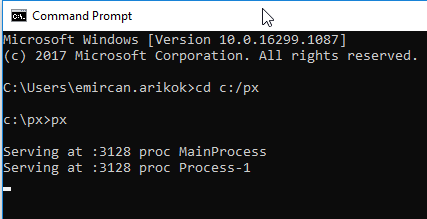
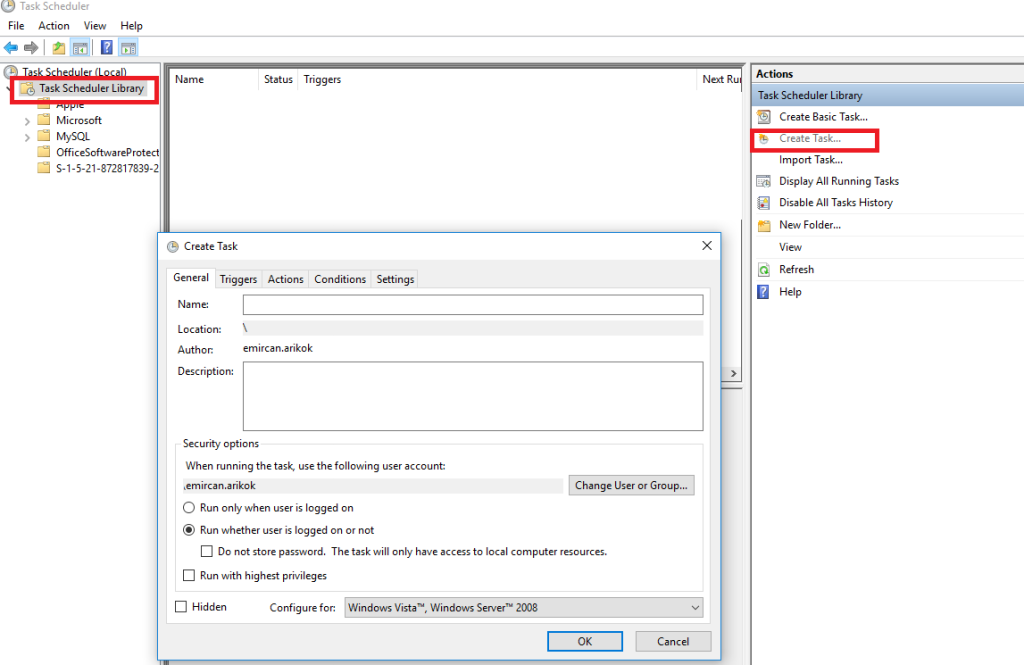
6- If you want to run px at the background and don’t want to start px proxy every time windows restarted, you can create a scheduled task, which will run px every windows startup.
-Start -> Task Scheduler -> Create Task
-General Tab : Fill Name column and Select “Run whether user is logged on or not”
-Triggers Tab : Begin the task : “At log on”
-Action Tab : Action: Select “Start a program” and then browse the px.exe
All the rest settings can be stay as is.
7- Viola, your PX proxy is ready to go. Set your new proxy to your applications… For example for NPM you can set proxy with below commands
npm config set http-proxy http://127.0.0.1:8000
npm config set https-proxy http://127.0.0.1:8000
Emircan A.
 codari